

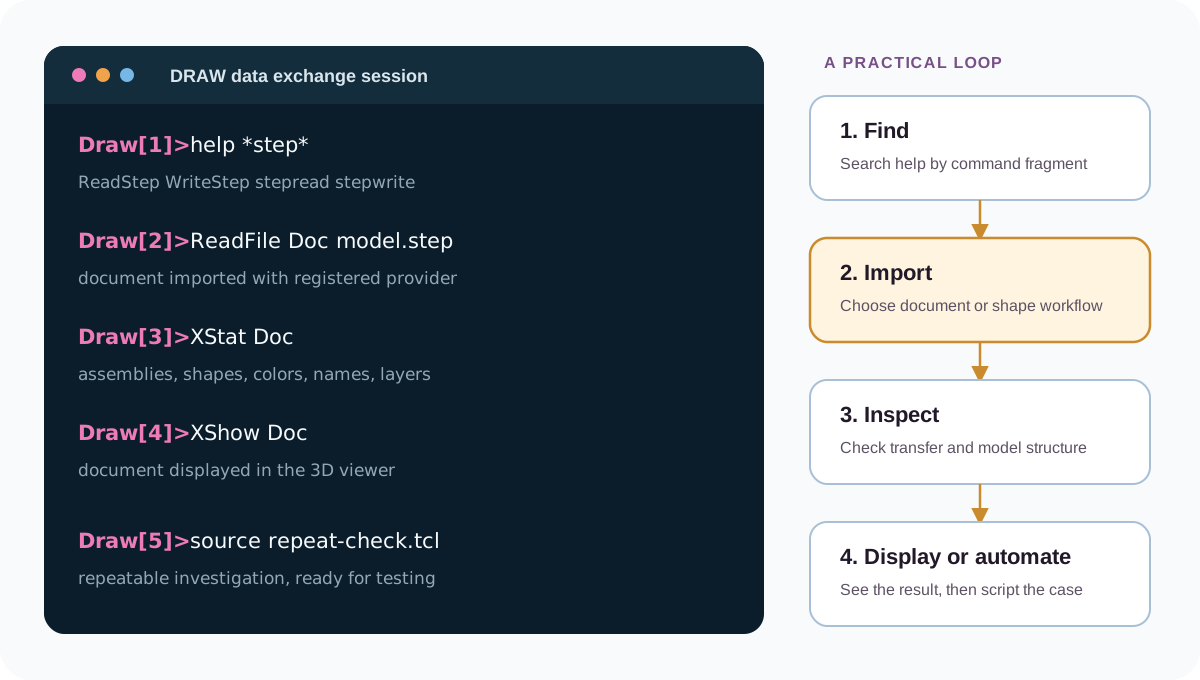
DRAW is OCCT’s command interpreter and test environment. It gives developers a direct way to exercise modeling and Data Exchange APIs, inspect intermediate results, reproduce failures, and turn an investigation into a Tcl test.
This guide focuses on commands most useful when working with imported files and XCAF documents. Command names and searches are case-sensitive. Available commands also depend on plugins loaded in your DRAW session.
Find a command first
If you know part of a command name, use help with a wildcard:
help *face*
help *step*
help X*
One search can find commands such as mkface; another narrows its list to STEP-related commands. help X* is useful for XCAF tools, whose DRAW commands commonly begin with an uppercase X.
Once you have a command name, ask DRAW for its exact arguments:
help ReadFile
help XGetShape
help checkshape
This is safer than relying on a remembered signature, especially when working across OCCT versions.
Import and export files
Use DE Wrapper for registered formats
DE Wrapper provides separate commands for documents and shapes:
| Operation | XCAF document | Shape |
|---|---|---|
| Read | ReadFile Doc filePath | readfile shape filePath |
| Write | WriteFile Doc filePath | writefile shape filePath |
For example:
ReadFile Doc model.step
readfile shape model.step

WriteFile Doc result.step
writefile shape result.step
Uppercase wrapper commands work with an XCAF document. Lowercase commands work with a DRAW shape. Use a document path when names, colors, layers, assembly structure, or other product metadata matter.
Use format-specific commands when needed
Format plugins expose additional commands. For STEP, a document-oriented reader is:
ReadStep Doc model.stepstepread opens a lower-level STEP transfer workflow and is useful when an investigation needs access to a transfer model or partial transfer. Check help stepread in a running DRAW session because this command continues interactively after loading a file.
Native persistence and B-Rep files use their own commands:
XOpen model.xbf Doc
restore model.brep shape

SaveAs Doc result.xbf
save shape result.brep
Check transfer and shape statistics
After a format-specific transfer, inspect its process before looking only at a final shape:
data c
tpstat c
data c reports transfer messages, including warnings and failures. tpstat c provides additional transfer statistics.
Use these commands to inspect resulting OCCT data:
XStat Doc
whatis shape
nbshapes shape
checkshape shapeXStatreports document-level XCAF statistics.whatisidentifies a DRAW object kind.nbshapesreports shape composition.checkshapechecks topology and geometry consistency.
A transfer report and resulting shape answer different questions. A reader can complete with warnings even when a shape exists, and a structurally valid shape does not prove that all source entities or metadata were transferred.
Inspect an XCAF document
DFBrowse Doc opens a document tree in a dedicated browser. OCCT Inspector provides a broader set of inspection tools and can be started through scripts supplied with an OCCT installation.
Frequently used XCAF commands include:
XGetOneShape result Doc
XGetShape result Doc 0:1:1:2
XAddShape Doc shape
XFindShape Doc shape
XUpdateAssemblies Doc
Use XGetOneShape when an algorithm expects one DRAW shape representing a document’s free shapes. Use XGetShape when its label is already known. XUpdateAssemblies rebuilds assembly compounds after document edits.
Display a result
DRAW offers several viewers. Choose one suited to data under investigation.
General 3D viewer
vinit
vdisplay shape
vfit
Useful display-management commands include vdonly, verase, vclear, and vsetdispmode.
For an XCAF document, use:
XShow DocGeometry and pcurve views
DRAW’s basic viewer can display curves, surfaces, isolines, normals, and shape boundaries. Commands such as axo, fit, isos, and normals are useful for focused geometric checks.
For two-dimensional curves on surfaces:
av2d
pcurve edge face
mu4 creates a four-view arrangement with orthographic and axonometric views when corresponding visualization commands are loaded.
Isolate a problem in a large STEP file
A useful debugging case should be much smaller than a full customer model. STEP is often convenient because transfer processing can relate an OCCT result to source entities.
1. Read and check a model
ReadStep Doc problem.step
XGetOneShape result Doc
checkshape result
nbshapes result
2. Narrow problematic topology
explode result fexplode creates named subshapes by type. Display only relevant candidates and use checkshape on a reduced set. A focused reproducer should keep only enough topology to show a failure.
3. Trace a source entity
When using a lower-level STEP transfer session, fromshape can identify a source entity associated with a transferred shape:
fromshape suspect
entity 123 2
entity then shows a selected STEP entity and its dependencies. Entity numbers depend on a loaded file and transfer session.
4. Transfer only a relevant entity
stepread supports a reduced, interactive transfer. Load a file, choose a transfer mode, and select a source entity reported during tracing. This can produce a much smaller DRAW shape for debugging.
Keep both an original file and a reduced reproducer while investigating. A reduced case is easier to test, while an original model confirms that a fix works in its real assembly and metadata context.
Build, modify, and analyze shapes
DRAW can prepare small shapes without an external CAD file:
mkedge edge 0 0 0 10 0 0
translate edge 0 5 0
Boolean commands operate on named shapes:
fuse a b result
cut a b result
common a b result
Useful analysis commands include:
checkshape result
dist a b
bounding result
nbshapes result
Before using an unfamiliar construction command, run help commandName; some commands accept geometric objects, topology, or additional options rather than a single universal signature.
Automate an investigation
DRAW executes Tcl scripts with source:
source repeat-check.tclA useful script should load required plugins, read its inputs, run an operation, and check a result that distinguishes success from failure. Once a reproducer is stable, it can become an OCCT test case.
Follow a Data Exchange pipeline
When debugging a reader or writer, separate its pipeline stages.
Reading
- Command and provider selection: DRAW selects a format-specific command or provider registered with DE Wrapper.
- Parsing: A reader converts file syntax into a format-specific model. Invalid schemas and corrupt file content usually fail here.
- Translation: Transfer logic converts a parsed model into OCCT shapes or an XCAF document.
- Healing and normalization: Format-specific processing adapts topology and geometry for OCCT use where required.
Shape-only translation returns TopoDS_Shape data. Document translation can also retain names, colors, layers, assembly structure, and other supported metadata.
Writing
- Pre-processing: A writer prepares shapes and metadata for a target format.
- Translation: OCCT data is converted into that format’s model.
- Serialization: This model is written to an output file or stream.
Following a call chain from a DRAW command is often a fast way to locate its provider, reader, transfer actor, or writer. getsource commandName can help locate commands implemented through DRAW scripts; C++ command registrations identify source files for compiled commands.
Test a complete round trip
OCCT Data Exchange tests are organized into grids such as de and de_mesh. A robust test normally checks more than whether a command returns successfully:
- read a source file;
- inspect transfer messages;
- verify topology and required metadata;
- write a result when a bug concerns export;
- read that written file again;
- compare properties that must survive a round trip.
Use a minimal model representing a defect, and record every option affecting transfer. This keeps a DRAW script repeatable and makes regressions easier to diagnose.